Analysis help
This page displays the full analysis details of the source material.
- On this page you can explore all of the detailed data that is used to generate BS Scores.
- Colorful text underlines indicate associations with the biases, fallacies, and other manipulations that have been identified in the material.
- Tap or click on individual words to see the detailed explanation for each association in the left hand pane.
1. Underlines
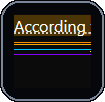
Word or phrase underlines are color matched to reasoning items in the right panel. These associations are the basis of BS Rankings. Click the underlined word to to open the complete explanation for that association in the left panel.
2. Reasoning Controls
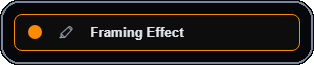
These are faulty reasoning types that have been associated with the displayed text. Click the bullet to hide matching text, and click on the highlighter to highlight matching text. Click the label for more data about that pattern of maniuplation.
3. Detailed Analysis
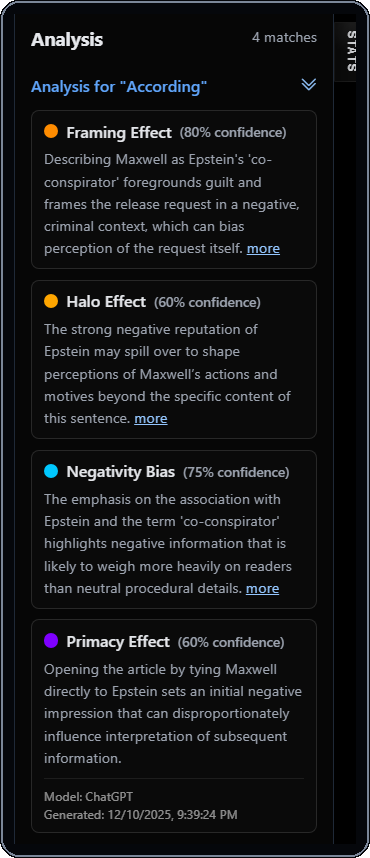
The left panel displays the detailed explanation and attribution for each detected manipulations. This is where you can see for yourself every detail that makes up each BS Score.
4. Heatmap and text shading
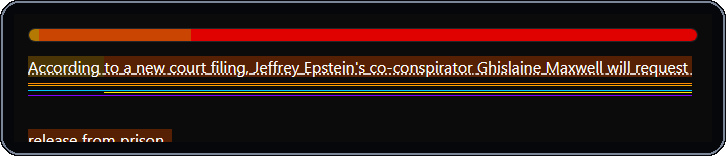
The heatmap indicates where manipulative language is most dense across the text. CLick on the heatmap to jump to the appropriate part of the text. The background color behind the text indicates word-level manipulation density.
5. Select Analysis
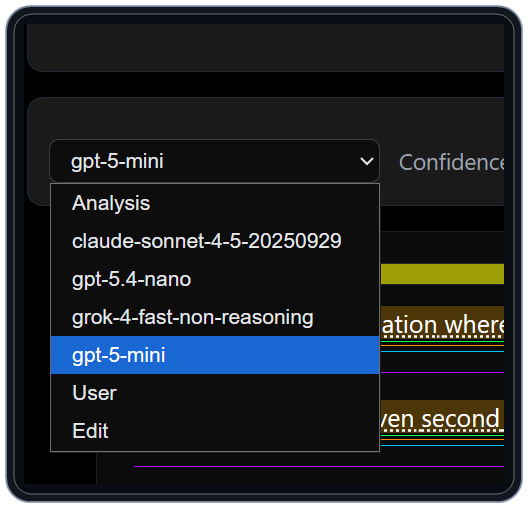
Use the Analysis menu to switch between the available analsess of that content, or to analyze the content yourself using the Analyze tool.
6. Confidence slider
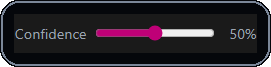
When manipluations are identified, a confidence score is given to that association, to represent how sure the analyst is of the accuracy of that match. Adjust the confidence slider to include or exclude lower-confidence detections in the analysis.
7. Underlines and heatmap toggles
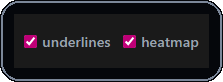
These checkboxes let you simplify the display by toggling the underline and heatmap display on and off.
8. Comparative heatmaps
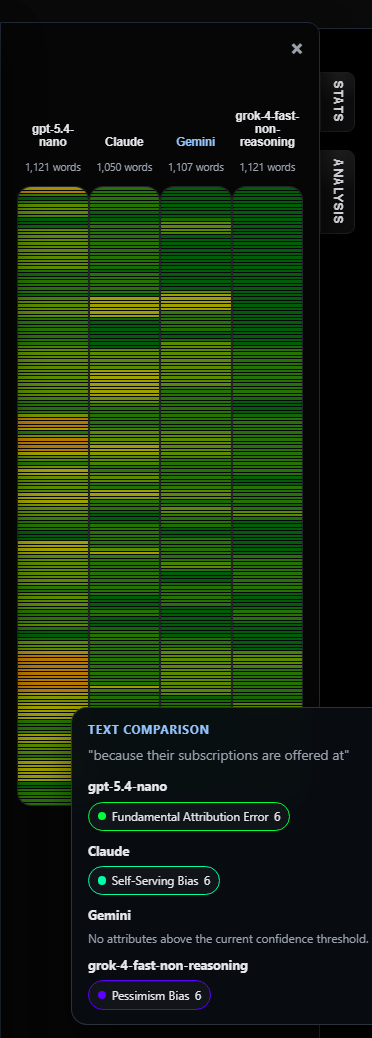
Vertical heatmaps compare where each analysis sees denser faulty reasoning across the text. Click any segment to jump to that section.
9. Stats panel
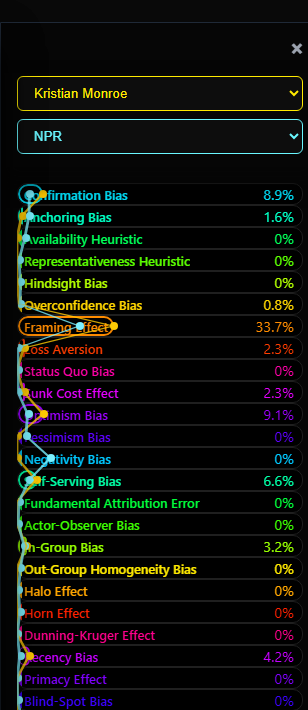
The Stats panel compares overall pattern percentages for the selected author and publication to the current content item. The dropdowns allow you to compare other authors and publications as well.